 Go up
Go up


SimplyMap Tip - Editing the Map Legend
Posted on Dec 02, 2014 by Admin
Today we take a look at one of the more advanced features in SimplyMap - editing the map legend. Editing the map legend is a great way to not only customize how the data is distributed on the map, but to also change the look and feel of the map.
First, you can customize the map by changing the geographic unit shown and the variable year from the legend.
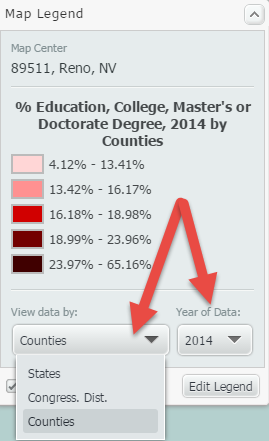
Data can be displayed by State, Congressional District, County, City, ZIP Code, Census Tract, or Census Block Group. The geographic unit can be chosen manually, or you can check the box labeled “Auto-select Geo Unit,” and SimplyMap will automatically display the most appropriate geography based on the zoom level of the map. Zooming into an area will result in increasingly smaller geographic units and present the data in greater detail.
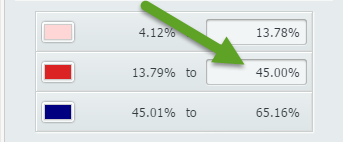
To edit other aspects of the map legend, select “Edit Legend” at the bottom of the legend. The Legend Editor will open. The image below details this dialog, along with an explanation of what can be edited:
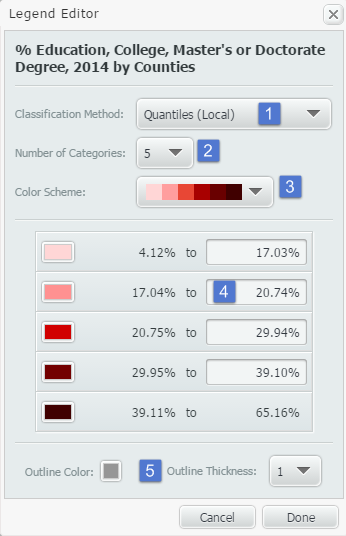
1. Classification Method: This dropdown determines how the data in your map is grouped. There are multiple methods for calculating break values for the data. You can select any of the following from the Classification Method menu:
•Quantiles (Local)
•Quantiles (National)
•Natural Breaks (Local)
•Natural Breaks (National)
•Equal Intervals
Changing from Quantiles (National) to Quantiles (Local) will reconfigure your data ranges to reflect a sample of locations from the current view, as opposed to viewing it on a national scale.
You can learn more about each of the classification methods in the FAQ.
2. Number of Categories: Determines the number of data ranges you would like to see. This will also impact the number of colors you see on the map. By default, this will show 5.
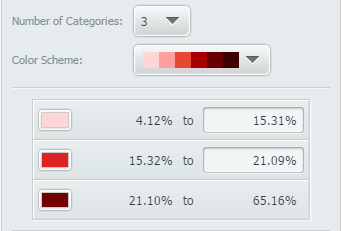
3. Color Scheme: Changes the map’s color scheme. Alternatively, if you select an individual box in the legend, you can apply your color of choice for each.
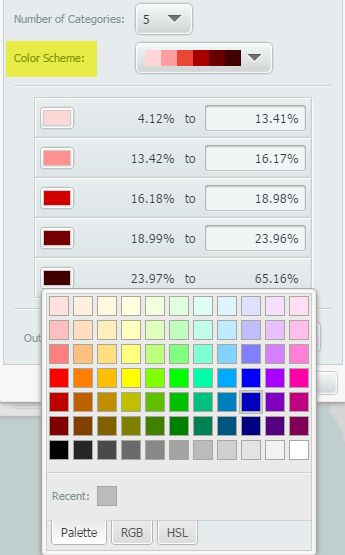
4. Data Values: Allows the user to manually enter new category break values and create custom data ranges.
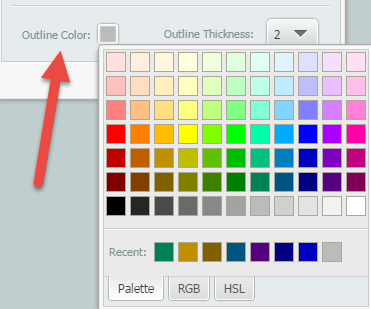
5. Outline Color/Outline Thickness: Changes the color and thickness of your map’s outline. The image below shows a map’s color outline and thickness set to a darker grey, and 2 respectively.
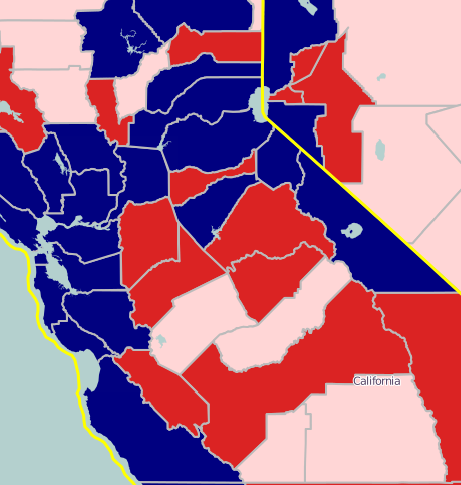
This is what the final map would look like with the edited color outline and thickness:
Stay tuned for more SimplyMap tips and tricks!
More from SimplyAnalytics


Posted on May 10, 2016 by Admin
One benefit of data and applications like SimplyMap is the ability to visualize information. In this week’s report, we’ll take a quick look at some branding preferences in contiguous Amer...
Posted on Oct 26, 2018 by Admin
Welcome readers! This week we’ll take a look at how to browse for data by category in SimplyAnalytics. Browsing by Category is the default way of browsing for data in SimplyAnalytics. It ...
Posted on Jan 19, 2009 by Admin
The 2009 Midwinter Meeting will be held in Denver, CO, from Jan 23–28, 2009. http://www.ala.org/midwinter The exhibits will be held Jan 23–26, 2009 at the Colorado Convention Center,...
Posted on Jun 08, 2015 by Admin
In this week’s report we take a look at one folder found within SimplyMap’s SimmonsLOCAL data package. SimmonsLOCAL is a powerful targeting and profiling system that provides insights int...
Posted on Mar 21, 2011 by Admin
Men's Health magazine decided to crown one town America's Most Socially Networked City, and has generated quite a buzz in the process. Their survey examined the number of Facebook and Li...
Posted on Jan 05, 2018 by Admin
The SimplyAnalytics team is looking forward to exhibiting at the Ontario Library Association Super Conference 2018! Stop by the SimplyAnalytcs booth (115T) and take a look at our newest o...
Posted on Jan 29, 2016 by Admin
In a previous blog entry, we highlighted the benefits of having multiple years of data available for the same variable. This allows users to identify trends over time. Keeping with the sa...
Posted on Mar 02, 2018 by Admin
In this week’s blog we’ll take a look at how to enter an address in SimplyAnalytics to find the Census Block Group or Census Tract. Let’s get started! Use Case: You want to analyze the ar...
Posted on Oct 16, 2015 by Admin
Did you know that SimplyMap includes the ability to export Shapefile data for use in desktop mapping software (such as MapInfo or ArcGIS)? This advanced feature extends the power of Simpl...
Posted on Apr 07, 2020 by Admin
As COVID-19 spreads across the United States researchers need access to the latest data visualization and analytics tools. As a result, the SimplyAnalytics team just added COVID-19 data ...