 Go up
Go up


Feature Highlight: Data Filters
Posted on Apr 23, 2018 by Admin
Hello everyone and welcome to this week’s blog. This week we will discuss how to create and utilize filters for your research.
Why Use a Filter?
Filters are a great way to identify target areas that meet multiple conditions.
Use Case
You want to identify areas of San Antonio to market your afterschool program that is aimed towards low income and low educational attainment areas. You can use a data filter to help find the target areas.
Example
First, we will identify the target areas by creating an income filter and mapping the education attainment variable. Let’s get started.
1.Create the project by entering the target location for analysis in the Location field. In this example, the city of San Antonio, TX.
2. Map the variable % Education, College, Masters or Doctorate Degree. This is one of the 3 default data variables available when creating a project.
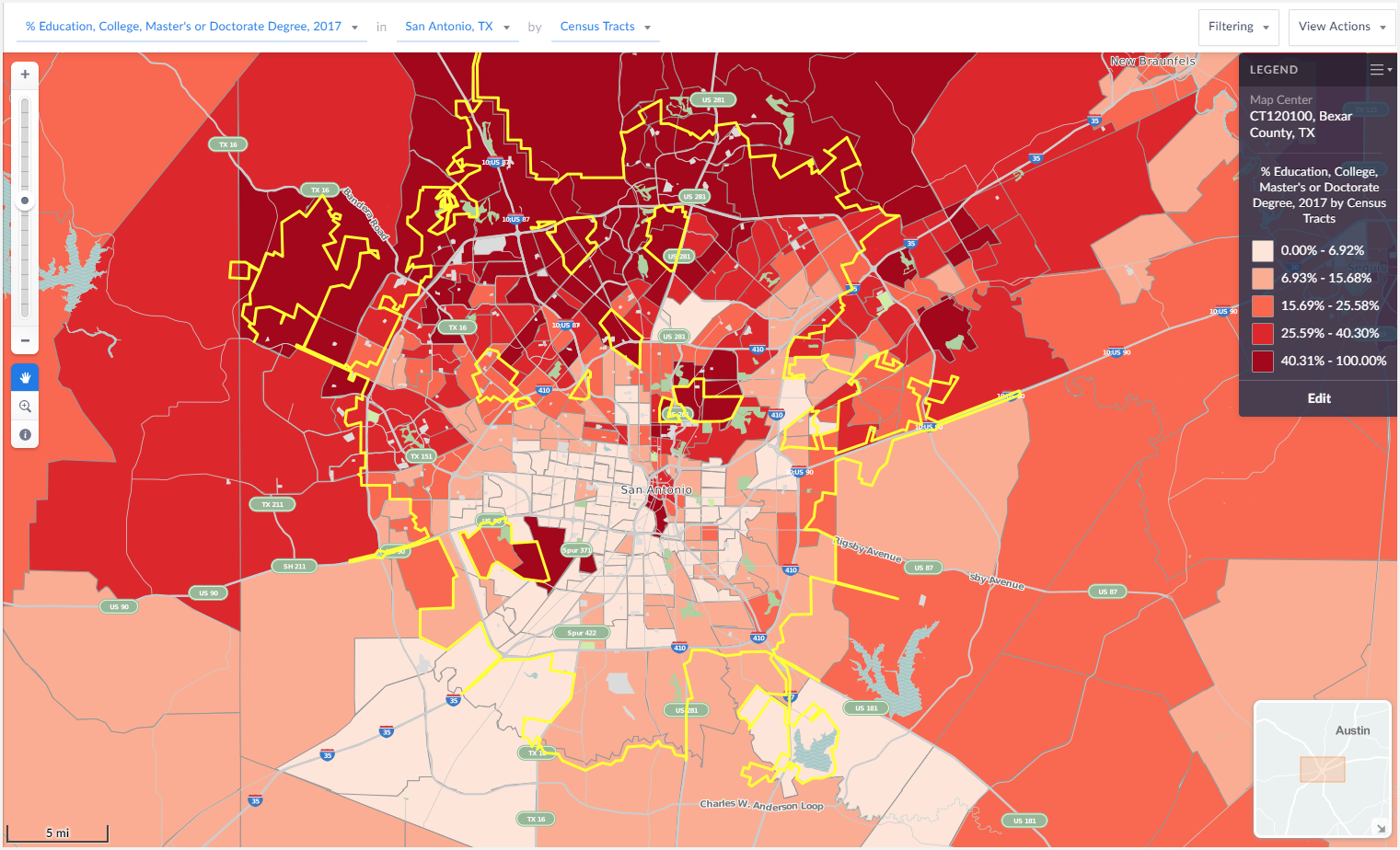
The darker areas of the map represent highly educated areas whereas the lighter areas reflect areas where a smaller percentage of residents have a college degree.
Next, create the income data filter.
- Select Filtering from the top Right of the interface. This will bring up the filter menu.
- Select a variable to act as a condition, in this example we want the Median Income variable.
- Enter a value for the condition (less than $35,000) and select Apply.
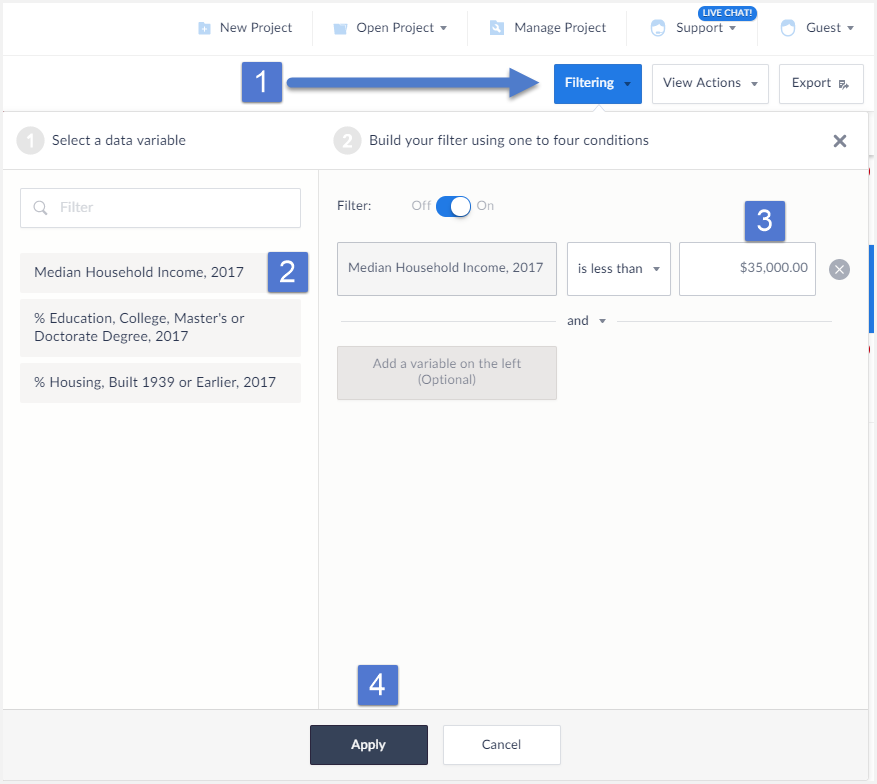
The filter gets applied to your map.
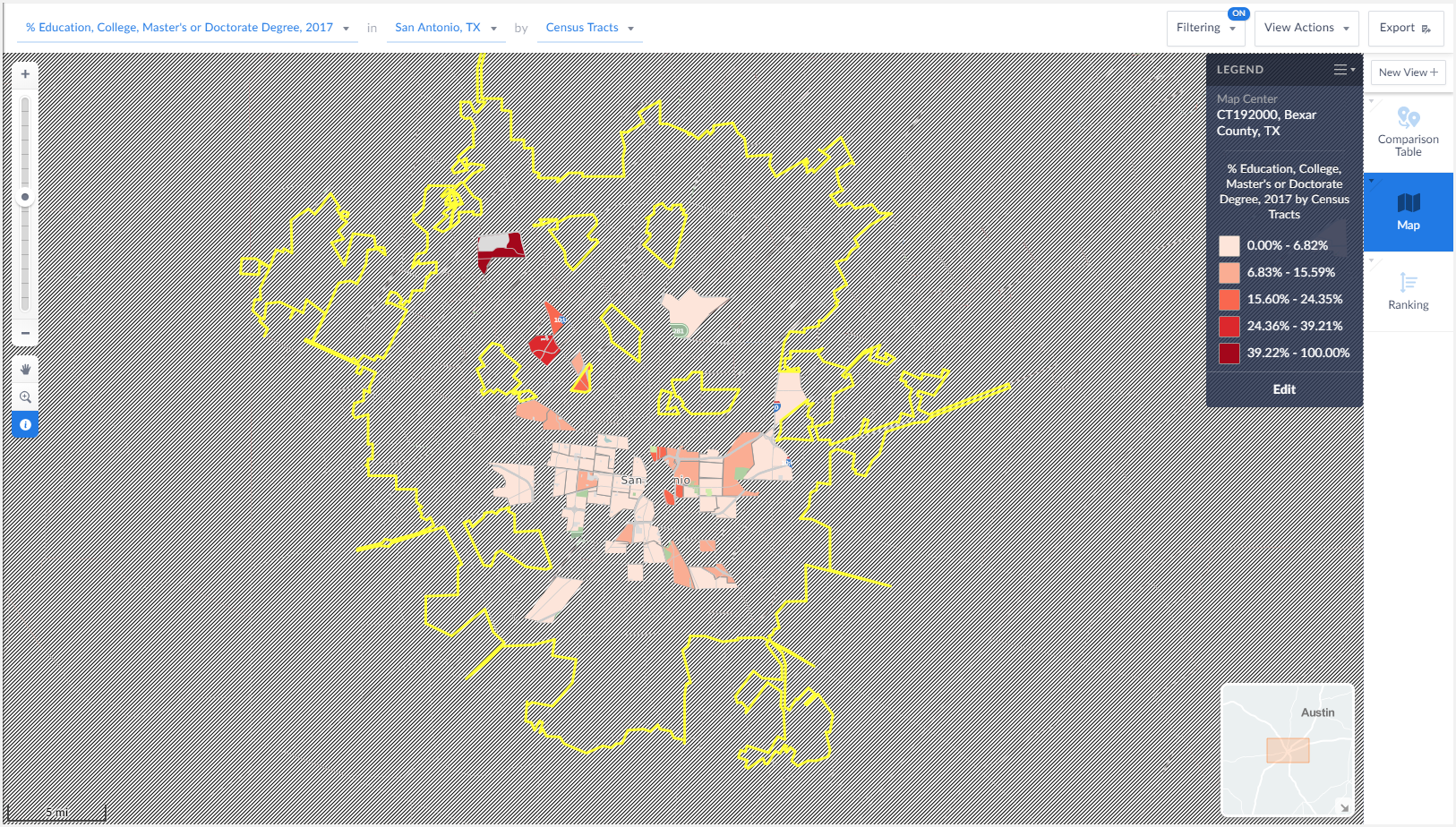
The final map image above reveals Census Tracts that meet our income criteria - looking at the still visible mapped areas provides the user with some ideal locations to market their program to.
That’s it for this week’s report! Stay tuned for more SimplyAnalytics how-tos and tips and send us your questions at support@simplyanalytics.com. If we feature your question in a future blog post, we’ll treat you to a $10 Starbucks gift card!
More from SimplyAnalytics


Posted on Oct 29, 2015 by Admin
Did you know that SimplyMap allows you to search for businesses by NAICS or SIC codes? Searching by these codes is a great alternative to the general keyword search. Using the keyword sea...
Posted on Apr 23, 2018 by Admin
Hello everyone and welcome to this week’s blog. This week we will discuss how to create and utilize filters for your research. Why Use a Filter? Filters are a great way to identify target...
Posted on Aug 22, 2009 by Admin
Lynda Kellam, the Data Services & Government Information Librarian at the University of North Carolina, Greensboro has produced some new tutorial videos to help students learn how to ...
Posted on Oct 26, 2018 by Admin
Welcome readers! This week we’ll take a look at how to browse for data by category in SimplyAnalytics. Browsing by Category is the default way of browsing for data in SimplyAnalytics. It ...
Posted on Sep 05, 2019 by Admin
SimplyAnalytics will be exhibiting at the biennial North Carolina Library Association conference, to be held this year at the Winston-Salem Benton Convention Center. If you are attending,...
Posted on Sep 14, 2021 by Admin
Welcome readers! Today we are excited to welcome histograms to SimplyAnalytics. We hope you enjoy this wonderful new visualization as much as we do. Let’s take a look. What is a histogram...
Posted on Aug 30, 2009 by Admin
Jeff Zaslow, Wall Street Journal columnist and co-author of the The Last Lecture, will speak at the Orlando, FL Public Library on Friday, September 11 at 7 p.m. Zaslow helped the late Ran...
Posted on Feb 21, 2018 by Admin
We are looking forward to sharing SimplyAnalytics with the public library community at the upcoming PLA 2018 Conference in Philadelphia, PA. Our team will be exhibiting in Booth #855. Vis...
Posted on Dec 07, 2021 by Admin
Hello readers! We hope you are enjoying the holiday season as much as we are. Today, we are happy to announce a couple of improvements to SimplyAnalytics designed to help you get your res...
Posted on Jan 23, 2015 by Admin
SimplyMap offers a total of 5 unique types of reports: Standard Report, Ranking Report, Business Report, Ring Study, and Location Analysis. This brief write up will define what each repor...