 Go up
Go up


Using Multiple Filter Conditions
Posted on Apr 14, 2016 by Admin
This week’s SimplyMap report will provide an overview of one of the more advanced functionalities in SimplyMap - applying multiple filter conditions. Filters can be applied to any map or report tabs. For example, a map showing Household income levels by ZIP Code could be filtered to only show ZIP Codes with income over a specific threshold. Another example would be to filter the same income map to only show ZIP Codes with a population over 8,000. Using multiple filter conditions is a great way to hone your focus on a narrower set of geographic locations that meet your multiple criteria. Let’s get started with an example.
Scenario: You are looking for the best location to open up a high end salon in California and want to develop an initial list to further analyze. Let’s assume there are three criteria that must be met before considering a location.
1. The location has to have more than 500,000 residents.
2. The location must have a median household income of at least 75,000.
3. At least 30% of households must report spending money at a salon.
The Setup: First, create a new Location Analysis Report and set your location to California. Next, navigate through some pertinent variables and add the following variables that will serve as our criteria.
# Population, Total (Census Data » People and Households » Age » Total)
Household Inc., Median (Census Data » People and Households » Income » HH Income)
% Households Buying - Expenditures: Amount Spent In Total: Beauty Parlor (MRI Consumer Survey » Purchasing » Average HH Spending)
After you have added all variables you are interested in, close out the Variables panel to generate your report. Results below:
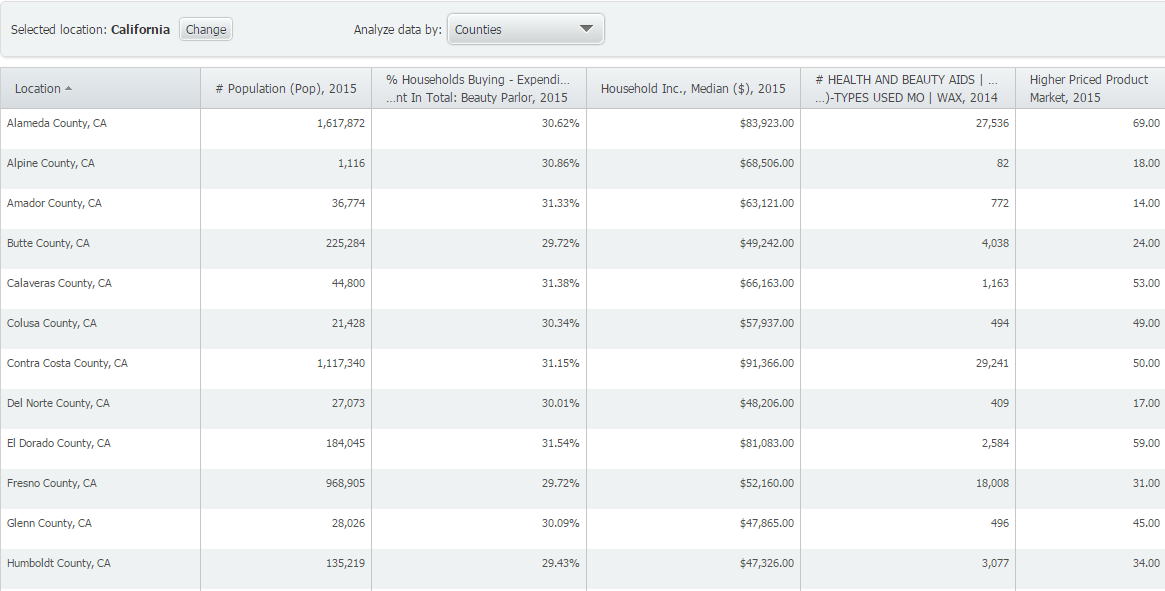
Your initial results will display all counties in California. To create a filter, click on Data Filters > Create New Filter from the top right of SimplyMap. The filter creation dialog will open up.
NOTE: The only variables that will show up as possible filter criteria in the variable dropdown will be either recently used variables, or favorite variables. In this case, we have the variables already in the report, so by default they will show under recently used variables.
1. Select the first dropdown and click on the beauty parlor variable. Leave the second dropdown to “is greater than” and enter a value of 30 in the last box.
2. Click on Add Another Condition to bring up a second variable selection box - choose the population variable and set that to “is greater than” 500,000.
3. Lastly, click on Add Another Condition once more, and find the Median Household Income variable - set this value to “is greater than” 75,000.
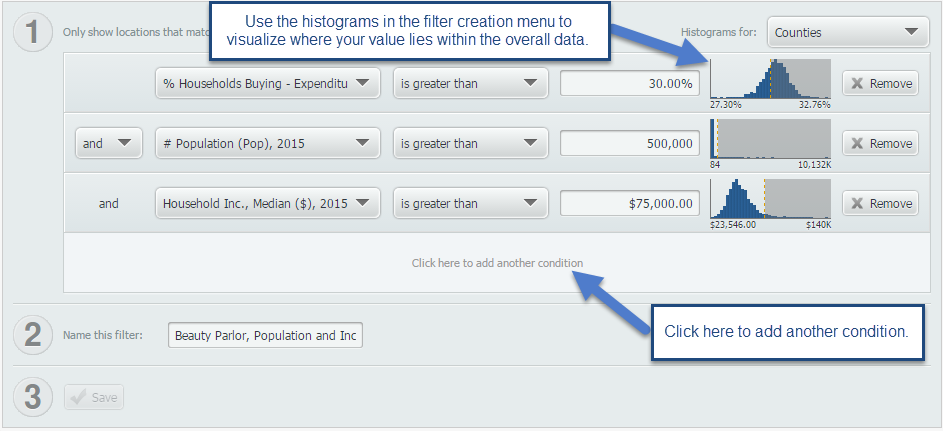
Give your filter a name, and click on SAVE to apply it onto your report. New results below!
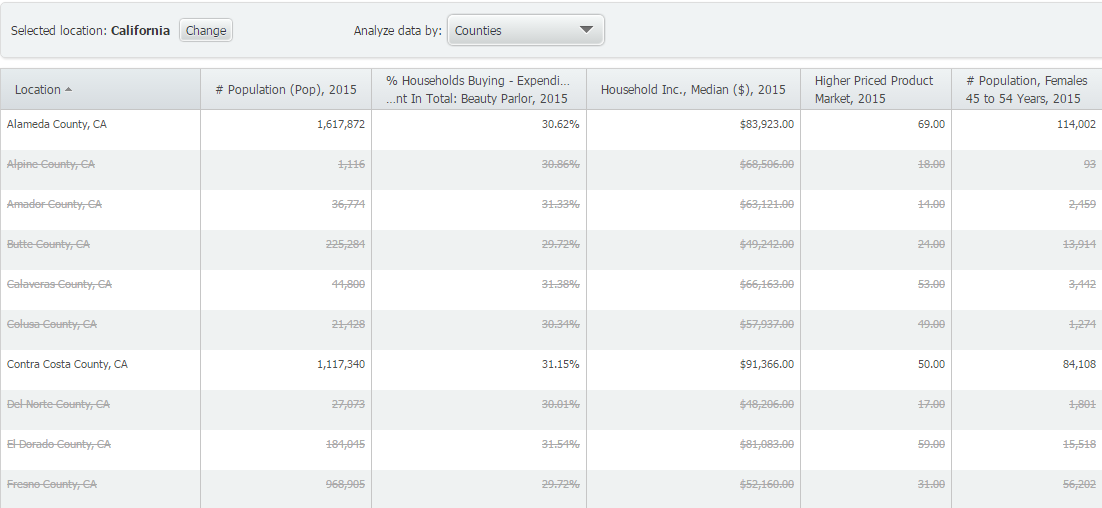
Locations that do not meet your three conditions are then struck out with a line and seen in light gray. If you’d like to hide these locations, click on Display Options > Filtered Locations > Hide. Your final report is shown below:
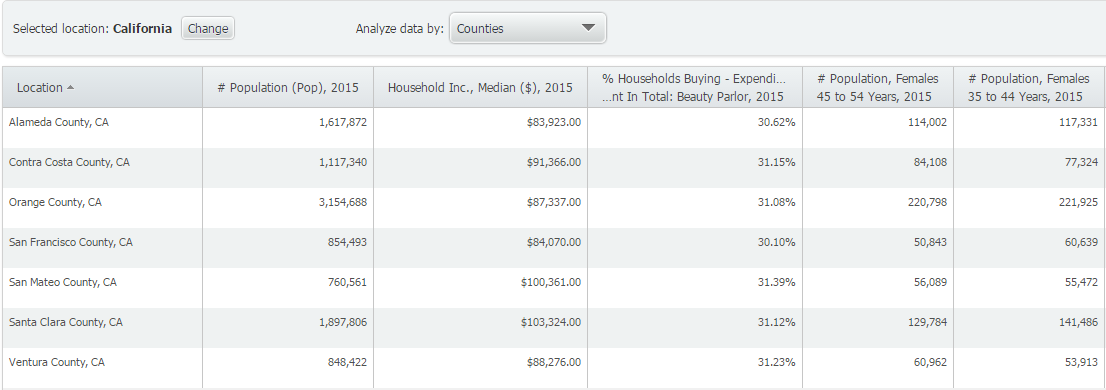
Only 7 of California’s 58 counties meet our specific criteria.
A logical next step for someone doing market research would be to analyze specific ZIP Codes or census tracts within these counties more in depth, and run business reports to see what the competition is like in the target areas.
Do you have any questions on creating and applying filters? Feel free to leave a comment below or send as an email at: support@geographicresearch.com
More from SimplyAnalytics


Posted on Apr 23, 2018 by Admin
Hello everyone and welcome to this week’s blog. This week we will discuss how to create and utilize filters for your research. Why Use a Filter? Filters are a great way to identify target...
Posted on Feb 05, 2015 by Admin
Our Winter Sweepstakes has begun! Enter to win an iPad Mini 3 or Kindle Fire. How to Enter: Follow @SimplyMap on Twitter Like our SimplyMap Facebook Page for a 2nd Chance to Win If you ...
Posted on Jul 19, 2016 by Admin
Are you a tech wizard? Maybe you’re an apprentice? Learn more about technology consumption behaviors using the Simmons MOSAIC Technology Adoption segments located within the SimmonsLOCAL ...
Posted on Mar 02, 2009 by Admin
ACRL's 14th National Conference will be held at the Washington State Trade and Convention Center in downtown Seattle, March 12-15, 2009. Every other year, ACRL offers its premier profe...
Posted on Apr 18, 2008 by Admin
A team of librarians at Drexel University has developed a detailed poster to introduce SimplyMap as a new research tool for the student body. The poster was launched on Drexel Research Da...
Posted on May 25, 2010 by Admin
We will be exhibiting at the 2010 SLA Annual Conference & INFO-EXPO June 13-15 at the Ernest N. Morial Convention Center in New Orleans, LA. Join us at booth 1537 - bring your quest...
Posted on Mar 04, 2020 by Admin
Come meet the SimplyAnalytics team at the 15th annual Electronic Resources and Libraries conference, held at the AT&T Hotel & Conference Center in Austin, TX. We will be exhibitin...
Posted on Jul 26, 2016 by Admin
In this week’s SimplyMap report, we’ll take a look at the Retail Market Power dataset and provide a simple, effective example of how the data package can be used. If your institution curr...
Posted on Nov 03, 2017 by Admin
This week we’ll talk about one of our favorite features in SimplyAnalytics - the custom combination location. This feature is a simple and effective means to create custom geographies whe...
Posted on Sep 05, 2019 by Admin
We are pleased to be exhibiting again at the Charleston Library Conference, on Tuesday November 5th, 2019. The Vendor Showcase will be held in the Gaillard Center Grand Ballroom (95 Calho...