 Go up
Go up


Editing the Map Legend
Posted on Nov 10, 2017 by Admin
Welcome to this week’s SimplyAnalytics blog post. Today we’re going to take a closer look at the options available to you when editing the map legend. Let’s get started!
First, to start editing your map legend click the Edit button located on the legend itself. Below we’ll discuss what each option does in more detail:
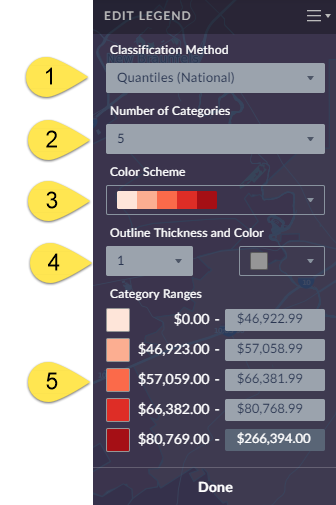
1) Classification Method - Determines the legend ranges for your map - you can choose between Quantiles (National), Quantiles (Local), Natural Breaks (Local), Natural Breaks (National), and Equal Intervals. TIP: By default maps are created using Quantiles National for any variable that you select - try switching to Quantiles Local to recalculate the legend ranges based on a sample of locations from the current map view. This can provide better local insight while also resulting in a more visually appealing map.
2.) Number of Categories - Determines how many legend ranges are available.
3.) Color Scheme - Choose from 9 color schemes to change the look of your map.
4.) Outline Thickness & Color - Allows you to change the outlines in your map - try changing the color and thickness to really alter the look and feel of your map.
5.) Category Ranges - You can select one of the available range boxes to enter your own value, and click on any of the associated colors to customize the color scheme!
Utilizing some of these color and boundary options available, you can create some unique and customized map designs that highlight key aspects of your research:
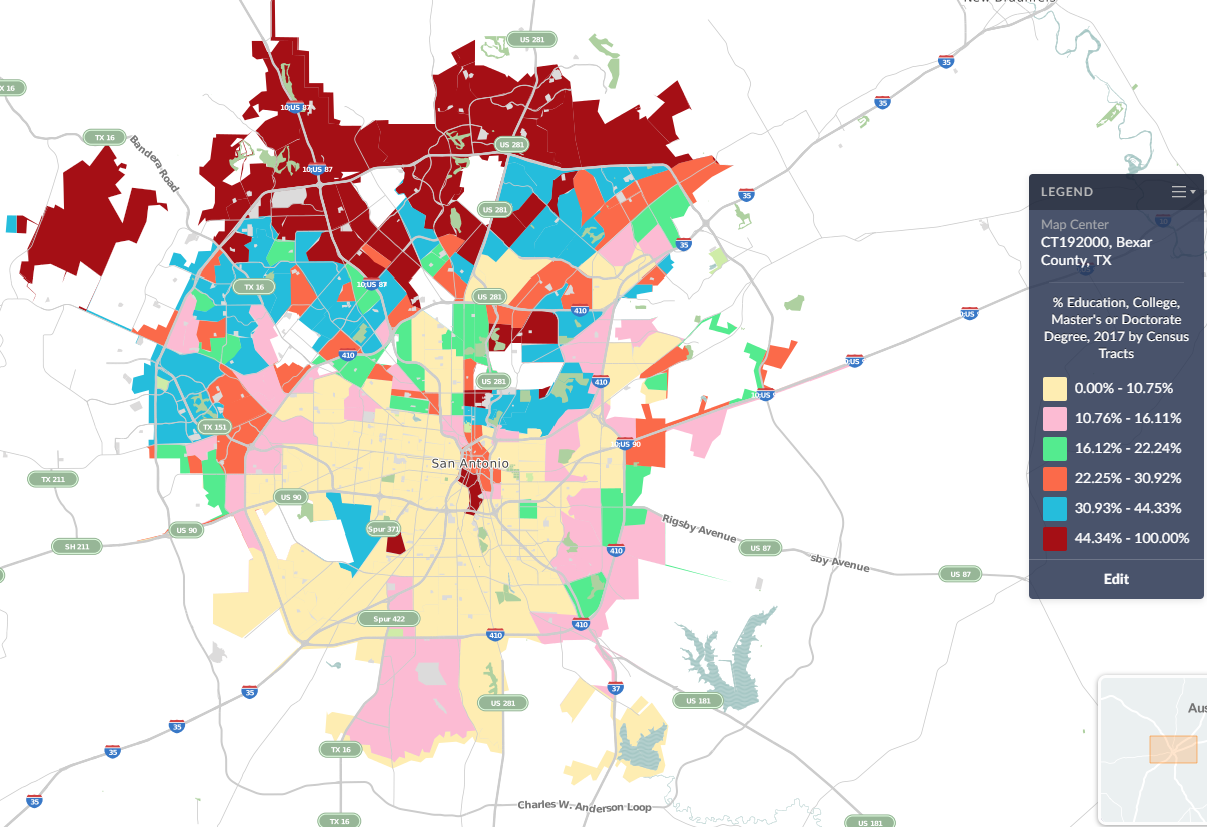
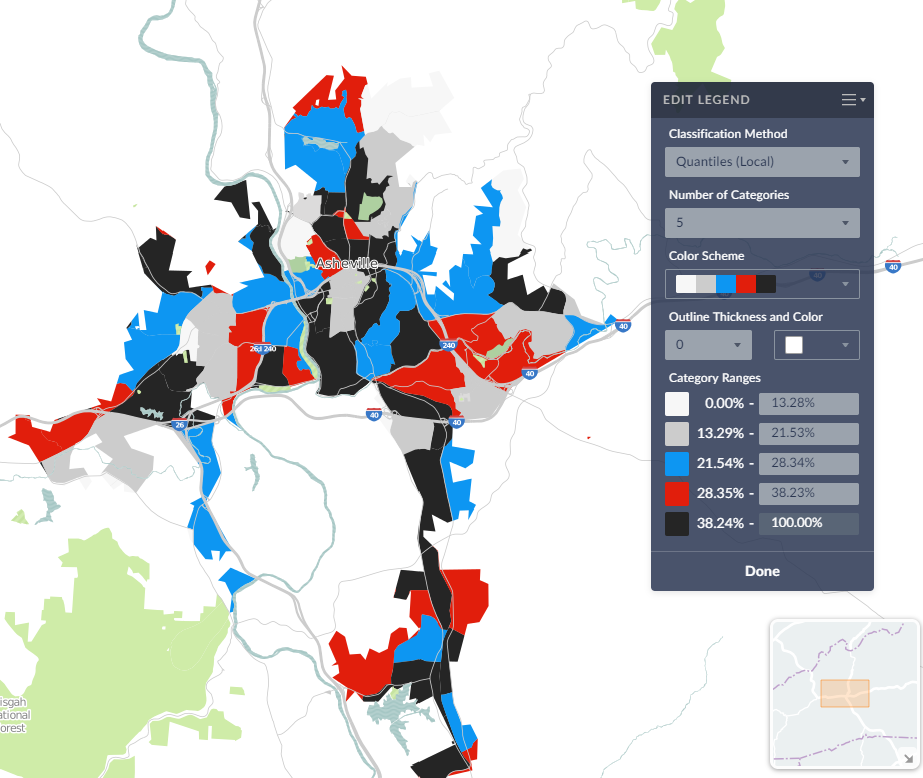
We hope this week’s entry has inspired you to explore the map legend a little more. Feel free to post a comment or tweet us your own unique map designs!
More from SimplyAnalytics


Posted on Mar 14, 2010 by Admin
The GRI team was honored to learn that SimplyMap was included in this year's Choice Outstanding Academic Title List, published in the January 2010 issue of Choice Magazine. This is a grea...
Posted on Oct 07, 2013 by Admin
Do you know the quickest way to find the name of a Block Group, Census Tract or ZIP code in our upcoming release for 3.0? The i-Tool gives you the ability to click anywhere on a map to g...
Posted on Feb 24, 2023 by Admin
We are excited to attend SCELCapalooza 2023, a three-day conference for academic and research librarians in Southern California. The Vendor Day showcase will take place on March 1st, 2023...
Posted on Aug 26, 2015 by Admin
Most people in the United States could probably guess which cities are popular amongst tourists - Los Angeles and New York. But can you guess how much money is spent in novelty and souven...
Posted on May 19, 2015 by Admin
We will be attending ALA this summer in San Francisco (hint: dress warm!). Visit us at Booth 413 and don't forget to enter our raffle - we will be giving away a $100 gift certificate to A...
Posted on Apr 23, 2018 by Admin
Hello everyone and welcome to this week’s blog. This week we will discuss how to create and utilize filters for your research. Why Use a Filter? Filters are a great way to identify target...
Posted on Jan 24, 2009 by Admin
Men's Health magazine took a look this month at where our wireless habits are most out of control. Their methodology includes the use of SimplyMap: First, we crunched data from SimplyMap...
Posted on Jul 28, 2013 by Admin
We recently discovered some interesting data on participation and attitudes towards recycling, and decided to dig a bit deeper into our Experian SimmonsLOCAL data. This data package inclu...
Posted on Sep 15, 2016 by Admin
While creating a radius location is the fastest and easiest method for creating a custom location, there may be situations that require a more specific and targeted locale. Let’s say for ...
Posted on Oct 24, 2019 by Admin
Hi everybody! This week we wanted to bring you something unique, so we’re taking you behind the scenes to show you what goes in to setting up the SimplyAnalytics conference booth you’ve c...