 Go up
Go up


SimplyMap 3.0 Tip - Using the Data Filter
Posted on Oct 24, 2014 by Admin
At times it can be useful to apply filters to the data in SimplyMap as a means of focusing on specific characteristics, or preforming a query. For example, a map showing household income levels by ZIP Code could be filtered to only show ZIP Codes with income over a specific threshold.
Filters can be applied to any map or report. When a filter is applied to a report, the locations that do not meet the filter criteria can be stricken out in the report, or hidden entirely. Let’s look at an example.
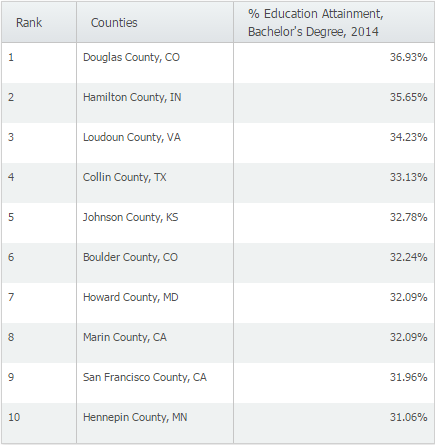
If you run a ranking report for counties in the US with the most residents possessing a Bachelor’s degree, you will see the following:
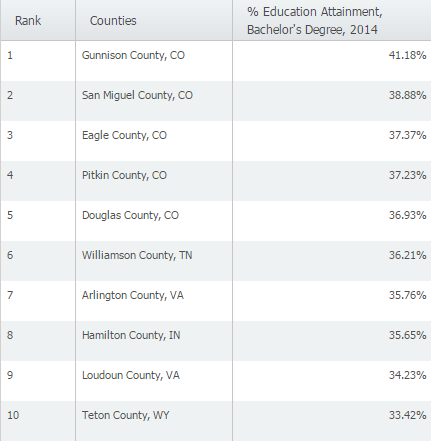
It turns out that the counties with the highest percentages of college graduates are found in lower population counties- Gunnison County, CO for example only has a population of 15,507. In order to analyze this data for larger population counties, we can apply a Data Filter. Here’s how:
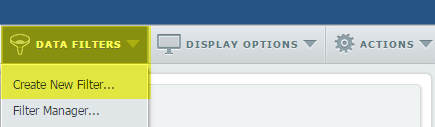
1. From the Data Filters menu near the upper right corner of the window, select Create New Filter.
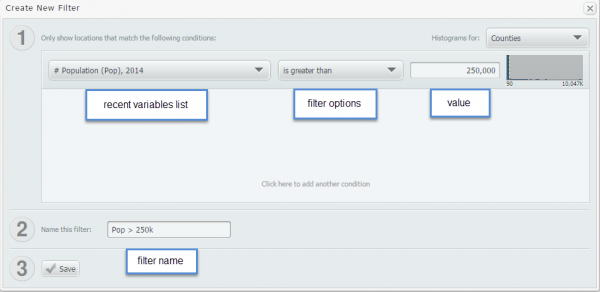
2. The Create New Filter window will pop up. Select a recent variable, filter option, set a value for the filter, and provide a descriptive name.
3. After you select save, you’ll see a list of counties that meet your new criteria.
Below is the new list of counties (> 250,000 population) with the highest % of bachelor’s degrees.
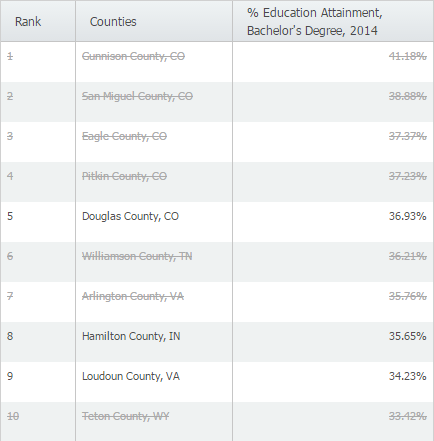
You may see a list of areas listed with a line through the middle to indicate the county has not reached your criteria (shown above). If you’d prefer to not see them at all, the display options menu has an option to hide them altogether.
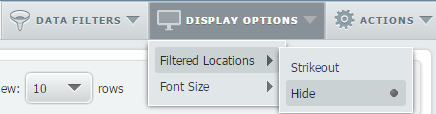
Here is what the results would look like if we hid those counties.
More from SimplyAnalytics


Posted on Feb 05, 2015 by Admin
Our Winter Sweepstakes has begun! Enter to win an iPad Mini 3 or Kindle Fire. How to Enter: Follow @SimplyMap on Twitter Like our SimplyMap Facebook Page for a 2nd Chance to Win If you ...
Posted on Feb 16, 2009 by Admin
Men's Health conducted their first survey of America's recycling habits, and used SimplyMap in their research. Here’s how the editors explain their methodology: To determine how well citi...
Posted on May 24, 2023 by Admin
SimplyAnalytics is excited to attend. Swing by booth 1733 for a brief demo, and discover how our user-friendly demographics, business, health & marketing data analytics and visualizat...
Posted on Feb 19, 2016 by Admin
Drop by booth #857 at PLA 2016 to meet the SimplyMap team and learn more about the features and functions behind SimplyMap. Have a Ghirardelli Chocolate while we present SimplyMap and off...
Posted on Apr 05, 2019 by Admin
Come visit the SimplyAnalytics booth (325) at the upcoming ACRL 2019 show in Cleveland! Say hello, grab a chocolate, and stay for a quick demo of SimplyAnalytics. The team will be showcas...
Posted on Apr 17, 2018 by Admin
The SimplyAnalytics team would like to congratulate Rachel Holder, MLS candidate at Indiana University for being selected as this year's recipient of the BRASS Student Travel Award! ...
Posted on Nov 23, 2012 by Admin
Men's Health magazine is charting vanity in US cities, with help from SimplyMap. What did they find? The Sunshine State, with a long history of going to great lengths to look good, tops t...
Posted on Sep 18, 2015 by Admin
With tens of thousands of variables available in SimplyMap, it’s common for users to wonder whether or not a particular variable they have in mind is available in SimplyMap. This is where...
Posted on Sep 10, 2019 by Admin
Hello readers! It’s been a minute since our last tutorial post, but you can expect to see more content on a weekly basis moving forward. “From the Help Desk” is a new feature on the blog ...
Posted on Sep 05, 2019 by Admin
We are pleased to be exhibiting again at the Charleston Library Conference, on Tuesday November 5th, 2019. The Vendor Showcase will be held in the Gaillard Center Grand Ballroom (95 Calho...